Bulk Import Your Saved Posts From YouTube, Pinterest, And Twitter
May 3, 2026 · 5 min
Social platforms are designed to keep you inside. They let you like, save, and bookmark content — but exporting those saves is buried in settings menus, requires archive downloads, and usually outputs formats no other tool can read. The result: years of curated content locked inside apps you may stop using, behind interfaces you can't search, with no guarantee the posts will still be there next month.
This post shows you how to bulk import bookmarks from YouTube, Pinterest, and Twitter into SaveSync. Once imported, every link lives in your vault — searchable by meaning, organized by platform, and accessible from any device. You save what you curated; you stop starting from zero every time a platform changes.
Upload your previous saves
After selecting a platform, SaveSync shows you exactly what file to download from that platform's settings page. Once you have the file, drag it into the upload area or select it with the file picker.
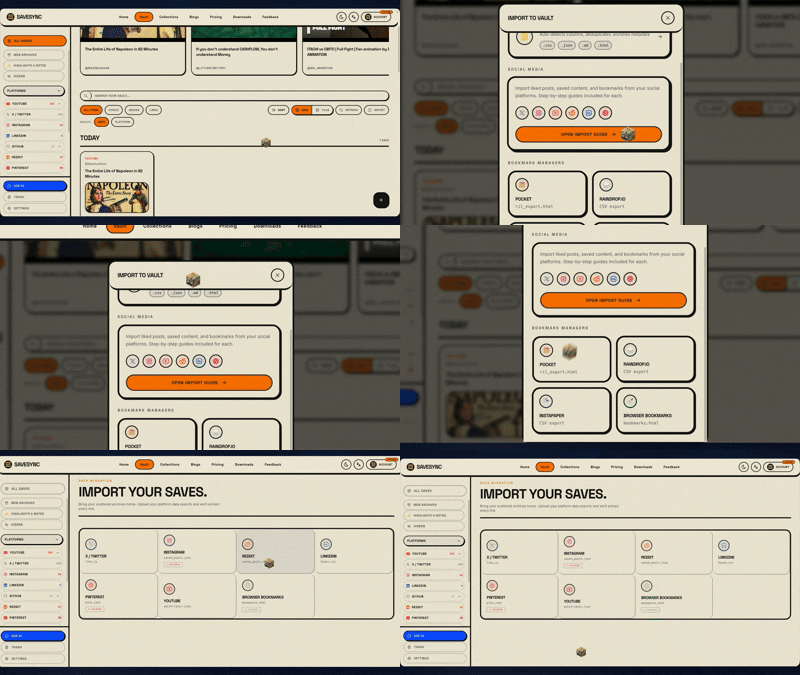
File upload modal — accepts like.js, bookmarks.html, pins.csv, and Takeout zip archives
Bulk import all your playlists from your social media
The SaveSync import tool supports YouTube, Pinterest, X/Twitter, and several other platforms. Select the platform you want to import from, and the tool walks you through the exact steps for each.
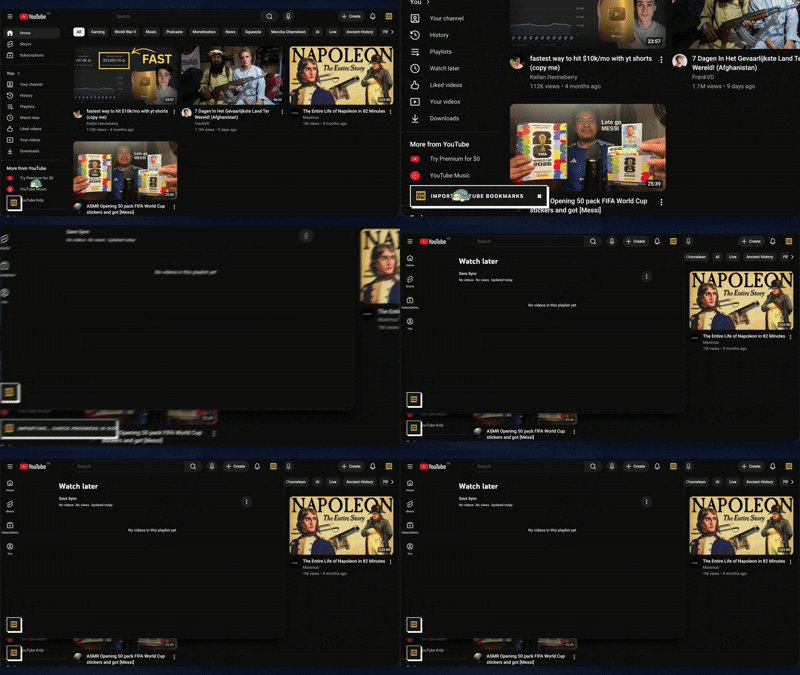
Import picker — YouTube, Pinterest, and X/Twitter highlighted among available sources
Import your bookmarks from all your social media platforms
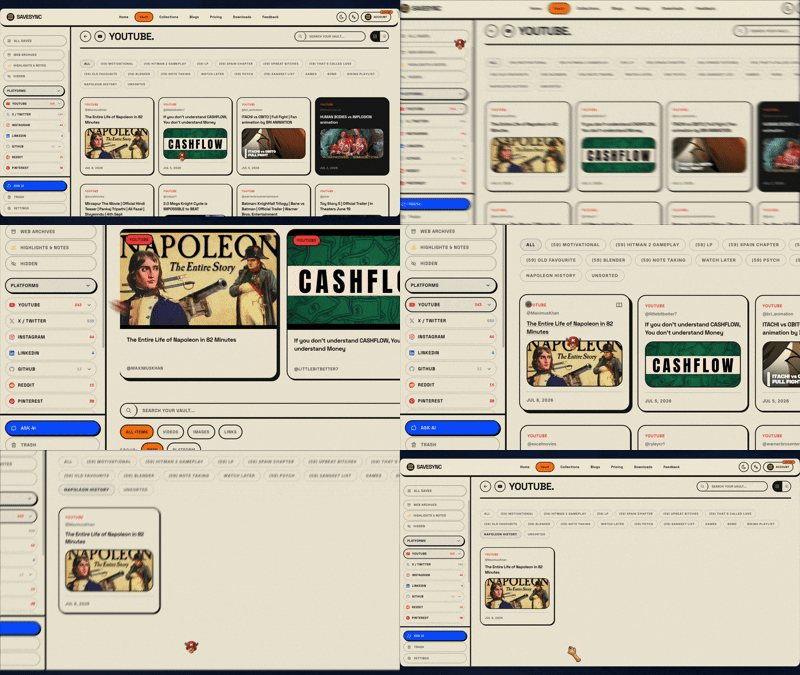
Import by clicking the 'Import your bookmarks'. SaveSync automatically extracts all the metadata you need—like video details from YouTube, board structures from Pinterest, and full text from X/Twitter—and organizes everything into platform-specific folders for you.
What SaveSync does with imported data
Every link imported from any platform goes through the same enrichment pipeline as links you save manually. SaveSync fetches Open Graph metadata, extracts the page title, description, thumbnail, and author from the source URL. Tags are inferred from the content and any category information in the original export file.
Imported links are placed in platform-specific folders automatically: YouTube links go into a YouTube vault, Pinterest pins go into a Pinterest vault, Twitter likes go into a Twitter vault. You can move, re-tag, or reorganize after import — the auto-placement is a starting point, not a lock-in. If you opted in to full-page archiving, SaveSync will queue an archive request for each imported link after enrichment completes.
Import limits by plan
| Plan | Import limit |
|---|---|
| Free | 500 links total across all imports |
| Pro | Unlimited imports |
| Lifetime | Unlimited imports + priority import queue |
Free-tier imports count toward the 500-link total. If you have more than 500 links to import, upgrade to Pro before starting the import. Pro and Lifetime accounts join a priority queue — large imports (5,000+ links) typically complete in under an hour. Free imports may take longer during peak periods.
What we don't import yet
Some platforms do not expose bulk export endpoints, which means automated import is not currently possible:
- Instagram saves — Instagram's API does not allow third-party apps to access your saved posts list. Use the mobile clipper instead: share individual posts to SaveSync directly from the Instagram app.
- LinkedIn saved posts — LinkedIn has no bulk export endpoint for saved posts. There is no workaround at this time.
- TikTok favorites — TikTok does not provide a favorites export file. Manual capture via the iOS or Android share sheet is the current option.
If any of these platforms add export support, SaveSync will add importer support in the next release cycle.
For importing from traditional bookmark managers — Pocket, Raindrop.io, or your browser's built-in bookmarks — see import-from-pocket. For organizing your vault after a large import, see organize-your-vault.